Bloody Computer

  • Subscribe to our RSS feed.
  • Twitter
  • StumbleUpon
  • Reddit
  • Facebook
  • Digg

Friday, 1 April 2011

How to compress images in Word and Powerpoint

Posted on 06:47 by Unknown
Inserted images in Word and Powerpoint may appear small, but they are actually stored as their original size unless compressed. This can cause printing to take a long time and needlessly increase file sizes. Thankfully there is a way to compress images in both these applications.

Office 2000, XP and 2003

Open the view menu and select 'Pictures' from the 'Toolbars' sub-menu. The picture toolbar, as shown below, should appear.

Click on the 'Compress pictures' icon (highlighted in orange on the above picture).

This opens the following window.
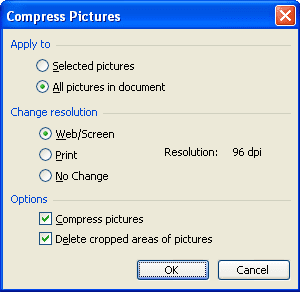

Select 'Web/Screen' for the highest level of compression, or 'Print' for a lower level. Make sure that 'Apply to' is set to 'All pictures in document', and click 'OK'.

You may then receive the following warning. If you do, click the 'Apply' button.
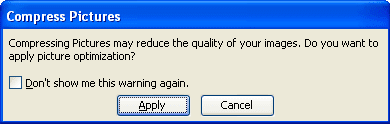


Office 2007 and 2010


Click on any image to enable 'Picture Tools', and click the 'Format' tab shown below.
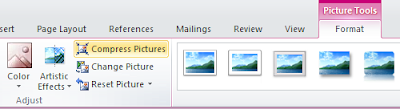

Click the 'Compress Pictures' button (highlighted in orange on the above picture), to open the following window.
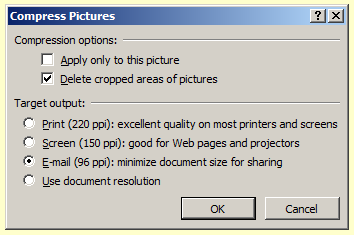
Select whichever level of compression best suits your purposes. Make sure that 'Apply only to this picture' is not selected, and click the 'OK' button.
Read More
Posted in PowerPoint, Printing, Word Processing | No comments

Thursday, 24 March 2011

Keyboard shortcut of the week: Windows 7 Taskbar

Posted on 04:32 by Unknown
After a long hiatus, keyboard shortcut of the week returns to 'Bloody Computer!' This week, we will look at new features of the Windows 7 taskbar.

You can open any program on the taskbar by holding the Windows key [shown right] and pressing the item number on the taskbar. For example, to open Internet Explorer on the following taskbar you would press Windows Key + 1. The calculator is Windows Key + 2, and so on.


If Internet Explorer is already running, pressing Windows Key + 1 will open that session. To start a new instance of the web browser press Shift + Windows Key + 1.

You can also shift focus to the taskbar using Windows Key + T. You can then use the left and right cursor keys to cycle through the items and press Enter to open them.

You can pin new programs to the taskbar by right-clicking on the icon and selecting 'Pin this program to the taskbar'. Once the icon is pinned, you can drag and drop it anywhere you like on the taskbar.

Read More
Posted in Keyboard shortcut, Windows GUI | No comments

Wednesday, 16 March 2011

How to print two pages per sheet

Posted on 05:46 by Unknown
Cutting down on the amount of paper used in printing not only saves money, but is also more environmentally friendly. Some applications offer the option of printing multiple pages per sheet of paper. In this post I will show you how to print two pages per sheet in MS Word and Adobe Acrobat Reader.

MS Word
Open the print dialogue from the 'File' menu in older versions of Word, or by clicking the Office Button in newer versions (as shown below).


Simply set 'Pages per sheet' to '2 pages' and click 'OK'.


Adobe Acrobat
Open the print dialogue from the 'File' menu.
Change 'Page Scaling' to 'Multiple pages per sheet' and 'Pages per sheet' to '2'.


OpenOffice
I found no easy way to print two pages per sheet in OpenOffice, but you can save the file as a pdf using the 'Export as PDF' tool in the 'File' menu and then open it in Adobe Acrobat and follow the above instructions.
Read More
Posted in Printing, Word Processing | No comments

Friday, 25 February 2011

Tips for searching using Google

Posted on 07:16 by Unknown
The Google search engine syntax offers a number of options for getting better results. You can search for a specific phrase, search only on a particular site, or exclude pages with certain words. You can use the advanced search page to make use of these or you can use these simple rules of syntax in the normal search field or on Google Toolbar.

To search for a specific phrase
Simply put the words in quotation marks. For example, "Lady Gaga"

To search on a particular site
Type in the keywords that you wish to sort with 'site:' followed by the address of the web pages that you wish to search. For example, if you wished to search this blog for the word Firefox you would enter firefox site:bloodycomputer.blogspot.com

You can also search particular classes of site. If you enter site:.co.uk football, Google will return only pages on sites that end .co.uk that contain the word football.

To omit pages containing certain words
If you preface a word with - then Google will not list pages that contain that word. For example, if you enter the terms linux -ubuntu, you will get a list of pages that contain the word 'linux' but not the word 'ubuntu'

You can use all of these options in a single search. If you wanted to search the BBC news site for all pages that contain the phrase 'Barrack Obama' but not 'Clinton' then you would enter site:bbc.co.uk/news "barack obama" -clinton
Read More
Posted in Websites | No comments

Wednesday, 16 February 2011

Link to Bloody Computer!

Posted on 03:37 by Unknown
Even though I redesigned this blog some time ago, I still only offered my old link image rather than use the nice new one that my brother designed for me. I have decided that I should make available some new code for anyone who wished to link to this blog.

Simply paste the following code onto your blog or other website. If you need any help, or advice with this then please leave a comment.


The link will look like this:


If you wish to use the old 'ransom note' style image click here.
Read More
Posted in Blogging, Websites | No comments

Sunday, 30 January 2011

Where have all my desktop icons gone?

Posted on 04:23 by Unknown
Windows offers the facility to hide all the icons on your desktop. The default option is to show all desktop icons, but this may be switched off either by accident or on purpose. To change this setting simply right-click on the desktop and a menu will appear.

On Windows XP you need to open up the 'Arrange icons by' sub-menu and then either tick or untick 'Show Desktop Icons'.
On Windows Vista and 7 the option is available in the 'View' menu.
Read More
Posted in Windows GUI | No comments

Wednesday, 12 January 2011

Dropbox: Internet File Storage

Posted on 05:10 by Unknown
There are a number of sites that offer you storage space to back up or share your files over the Internet. Many of them have a limit on the size of file that can be stored, but this is not the case with Dropbox. Dropbox offers 2gb of storage space for free. This capacity can be increased if you upgrade to one of the payment options.

Dropbox provide software that enables you to access your storage space as if it were a drive on your computer. This software is available for Windows, OSX, Linux and a variety of mobile devices. Alternatively you can use the Dropbox web site to upload and download files.

Files can be placed in a 'Public' folder so that other Dropbox users may access them, or they can be stored in your private area, in which you can create new folders. Dropbox also records any activity on your account. Just follow the simple registration procedure and you will have enough space to back up your essential files.
Read More
Posted in Freeware, Websites | No comments
Newer Posts Older Posts Home
Subscribe to: Comments (Atom)

Popular Posts

  • Recent freeware releases
    It has been some time since I last posted on this blog. In that time there have been a number of major new software releases. These include ...
  • Keyboard shortcut of the week: undo and redo
    Just about every windows application has an 'undo' feature and most have a 'redo' feature. These are a lifesaver on those fr...
  • What is that character called?
    If you look around your keyboard, you will notice a number of keys with characters on that you may not know the name of. In this post I will...
  • Updates
    Apologies for not posting anything recently. I have been very busy with the start of the new university year. Since things have calmed down ...
  • Tips for searching using Google
    The Google search engine syntax offers a number of options for getting better results. You can search for a specific phrase, search only on...
  • How to compress images in Word and Powerpoint
    Inserted images in Word and Powerpoint may appear small, but they are actually stored as their original size unless compressed. This can cau...
  • LibreOffice 3.4
    I have featured OpenOffice.org on this blog a few times in the past. It is a free office suite featuring a word processor, a spreadsheet pr...
  • How to print two pages per sheet
    Cutting down on the amount of paper used in printing not only saves money, but is also more environmentally friendly. Some applications offe...
  • Keyboard shortcut of the week: Windows 7 Taskbar
    After a long hiatus, keyboard shortc ut of the week returns to 'Bloody Computer!' This week, we will look at new features of the Wi...
  • Keyboard shortcut of the week: The Case of MS Word
    When using a word processor it is quite common to forget that that the CapsLock key has been left on, or you might decide that a piece of t...

Categories

  • Audio
  • Backups
  • Blog Carnival
  • Blogging
  • CD-roms
  • Chrome
  • Command Prompt
  • Competition
  • Drives
  • DVD-roms
  • Email
  • Error Messages
  • Excel
  • Faster Windows
  • File Conversion
  • File Management
  • File Recovery
  • File Types
  • Firefox
  • Fonts
  • Freeware
  • Games
  • Graphics
  • Guest article
  • Internet Explorer
  • Jargon
  • Keyboard shortcut
  • LibreOffice
  • Linux
  • Lost document
  • Low drive space
  • Mouse
  • Networking
  • OpenOffice
  • PowerPoint
  • Printing
  • Protection
  • Purchases
  • Registry
  • Review
  • Scanning
  • Searching
  • Security
  • Startup
  • Upgrades
  • Video
  • Web feeds
  • Websites
  • Windows Crash
  • Windows Explained
  • Windows GUI
  • Windows Hangs
  • Word Processing

Blog Archive

  • ▼  2012 (4)
    • ▼  September (1)
      • Keyboard shortcut of the week: Sub- and Superscript
    • ►  May (1)
    • ►  February (2)
  • ►  2011 (12)
    • ►  November (1)
    • ►  October (1)
    • ►  September (1)
    • ►  June (1)
    • ►  May (1)
    • ►  April (1)
    • ►  March (2)
    • ►  February (2)
    • ►  January (2)
  • ►  2010 (21)
    • ►  December (2)
    • ►  October (2)
    • ►  September (1)
    • ►  August (2)
    • ►  July (1)
    • ►  May (2)
    • ►  March (6)
    • ►  February (4)
    • ►  January (1)
  • ►  2009 (33)
    • ►  December (1)
    • ►  November (1)
    • ►  October (3)
    • ►  September (4)
    • ►  August (1)
    • ►  July (2)
    • ►  June (4)
    • ►  May (3)
    • ►  April (3)
    • ►  March (3)
    • ►  February (4)
    • ►  January (4)
  • ►  2008 (82)
    • ►  December (2)
    • ►  November (4)
    • ►  October (3)
    • ►  September (5)
    • ►  August (4)
    • ►  July (4)
    • ►  June (6)
    • ►  May (7)
    • ►  April (10)
    • ►  March (10)
    • ►  February (14)
    • ►  January (13)
  • ►  2007 (47)
    • ►  December (5)
    • ►  November (6)
    • ►  October (16)
    • ►  September (12)
    • ►  August (8)
Powered by Blogger.

About Me

Unknown
View my complete profile