


Apologies to my regular readers for not having posted anything in the last month or so. I have been busy with other matters, but I am glad to say that my summer holiday starts here and I will be able to dedicate more time to Bloody Computer!. So expect to see some new posts soon, including updates of previous tips for Windows 7.
Friday, 2 July 2010
Friday, 28 May 2010
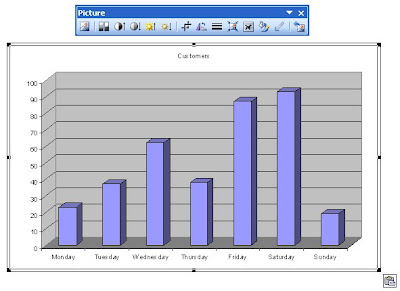
When copying charts into a word processor, whether in Microsoft Office from Excel to Word or in openoffice.org from Calc to Writer, the software embeds a special object that links back to the original spreadsheet. If you then change the details in the Excel spreadsheet the chart in the Word document will change accordingly. In many cases this is advantageous; however, it can cause problems if the Word document cannot 'see' the Excel file, for example, if you email the Word file to someone without the Excel file. It is generally better to paste the chart as an image in the first place using the 'Paste special' facility.
I will start by explaining how to do this in Microsoft Office:
Once you have created your chart in Excel you select it and copy it, as shown here.

In older versions of Word you pull down the 'Edit' menu and select 'Paste Special'. You may have to wait a moment for all the menu items to be revealed.

In the latest versions of Word, 'Paste special' is in a menu underneath the 'Paste' button.

A box will open, from which you select 'Picture (Enhanced Metafile)', and click OK.
 This will then insert the chart as a picture, which you can manipulate like any other imported image.
 In openoffice.org, the procedure is pretty much the same as above, with 'Paste special' is in the 'Edit' menu, or alternatively you can use a keyboard shortcut: Ctrl + Shift + V. The major difference from above is that the following box will open when you select 'Paste special'. Simply select 'Bitmap' and click OK to paste the chart as a picture.

I will start by explaining how to do this in Microsoft Office:
Once you have created your chart in Excel you select it and copy it, as shown here.

In older versions of Word you pull down the 'Edit' menu and select 'Paste Special'. You may have to wait a moment for all the menu items to be revealed.

In the latest versions of Word, 'Paste special' is in a menu underneath the 'Paste' button.

A box will open, from which you select 'Picture (Enhanced Metafile)', and click OK.
 This will then insert the chart as a picture, which you can manipulate like any other imported image.
 In openoffice.org, the procedure is pretty much the same as above, with 'Paste special' is in the 'Edit' menu, or alternatively you can use a keyboard shortcut: Ctrl + Shift + V. The major difference from above is that the following box will open when you select 'Paste special'. Simply select 'Bitmap' and click OK to paste the chart as a picture.
Monday, 3 May 2010
While most web addresses on sites are clickable links, you will have noticed that some are just text that you have to copy and paste into the address bar of your browser. Alternatively, Firefox offers you the facility drag and drop these into a new tab. Simply highlight the address, click on it and while holding down the mouse button drag it up onto the tab bar. Firefox will then automatically open the page in a new tab. I have included a video of this function to show you what I mean.
Tuesday, 30 March 2010
Having switched to Linux a while ago, I finally have settled on a variety of Internet applications that do what I want. I listed a variety of web browsers in a previous post, so this time I will look at other Internet clients.
I have been on-line for many years, so this list includes some applications for systems you may never have heard of, but you may want to try anyway and impress friends and family with your 'old school' credentials.
IRC Client - XChat
Internet Relay Chat (IRC) was the online chat system of choice in the days before Internet messaging apps such as ICQ, AIM, Windows Live Messenger, and Yahoo! Messenger. There are a number of IRC clients available for Linux, but I have settled on the fully featured XChat, which is also available for Windows.

Usenet client - Pan
Usenet resembles a Bulletin Board System (BBS) or a web forum. It enables you to access a number of newsgroups either provided by your ISP or available on an open server. I still check newsgroups occasionally, so I needed a decent application to do so. I chose Pan, because it had all the features I needed including support for binaries.

Voice over IP client - Skype
This popular VoIP/messenger/videoconferencing client is also available for a number of Linux distributions. While it is not as fully-featured as the Windows version, it still does all that I need.

I have been on-line for many years, so this list includes some applications for systems you may never have heard of, but you may want to try anyway and impress friends and family with your 'old school' credentials.
IRC Client - XChat
Internet Relay Chat (IRC) was the online chat system of choice in the days before Internet messaging apps such as ICQ, AIM, Windows Live Messenger, and Yahoo! Messenger. There are a number of IRC clients available for Linux, but I have settled on the fully featured XChat, which is also available for Windows.

Usenet client - Pan
Usenet resembles a Bulletin Board System (BBS) or a web forum. It enables you to access a number of newsgroups either provided by your ISP or available on an open server. I still check newsgroups occasionally, so I needed a decent application to do so. I chose Pan, because it had all the features I needed including support for binaries.

Voice over IP client - Skype
This popular VoIP/messenger/videoconferencing client is also available for a number of Linux distributions. While it is not as fully-featured as the Windows version, it still does all that I need.

Wednesday, 24 March 2010
Observant regulars may notice that I have removed the list of 'recommended freeware' from the left hand column on this blog, but it is not gone completely. I have placed the list on a standalone page accessible from the menu bar above or via this link.
I will be reformatting this page and regularly adding new software to it, beginning with all the recent recommendations for Linux.
I will be reformatting this page and regularly adding new software to it, beginning with all the recent recommendations for Linux.
Wednesday, 17 March 2010
Portable applications are ideal for anyone who uses more than one Windows computer, especially if they don't have privileges to install software. Simply install the program onto a USB pendrive and carry them about with you.
 Firefox 3.6 Portable
The major advantage of Firefox Portable is that you can take your bookmarks, add-ons and passwords with you. Although, you should be careful with passwords in case you lose your USB pendrive.
 OpenOffice.org Portable
OpenOffice.org is the ideal free alternative to Microsoft Office, offering incredibly similar features and support for all Office file types.
 GIMP Portable
The best freeware image editing software is now available as a portable edition.

VLC Media Player Portable
VLC is the media player par excellence as it will play just about all media types without the need to find and install codecs.
 Pidgin Portable
Pidgin is an instant messenger that supports AOL, Yahoo, MSN, ICQ, GoogleChat and many more.
 Firefox 3.6 Portable
The major advantage of Firefox Portable is that you can take your bookmarks, add-ons and passwords with you. Although, you should be careful with passwords in case you lose your USB pendrive.
 OpenOffice.org Portable
OpenOffice.org is the ideal free alternative to Microsoft Office, offering incredibly similar features and support for all Office file types.
 GIMP Portable
The best freeware image editing software is now available as a portable edition.

VLC Media Player Portable
VLC is the media player par excellence as it will play just about all media types without the need to find and install codecs.
 Pidgin Portable
Pidgin is an instant messenger that supports AOL, Yahoo, MSN, ICQ, GoogleChat and many more.
Monday, 15 March 2010
In the last post I demonstrated how to easily enter lists of numbers, days of the week and months of the year in Excel and Calc (the OpenOffice.org spreadsheet application). Both programs offer the option to add custom lists to this feature. In this post I will show you how to add the colours of the spectrum as a new list.
Excel 2003 and earlier
Open up Excel and type the colours of the rainbow into one of the columns, then select the cells as shown below.

Pull down the 'Tools' menu and select 'Options', then go to the 'Custom Lists' tab.

You should see an entry in the 'Import list from cells' box. Click on the 'Import' button to the right of this to add the list.

The colours list will appear in the 'List entries' box. Rather than type the entries into cells, you could just type the list in this box, pressing Enter after each item, and then click the 'Add' button to save the list.
Click 'OK', and the list is available to use. Simply type 'Red' in a cell and drag the handler down to automatically fill consecutive cells with the other colours.
Excel 2007 and later
 Follow the previous instructions, except to open the 'Options' box click the Microsoft Office Button (shown right), and then click the 'Excel Options' button.
On the 'Popular' page, click the 'Edit Custom Lists' button and continue as above.

OpenOffice.org Calc
Type the list of colours into a column of cells and select them as shown.

From the 'Tools' menu, select 'Options', then click the + next to 'OpenOffice.org calc' in the list, to expand its entries, then click on 'Sort Lists', as shown.

You should see an entry in the 'Copy list from' box. Click on the 'Copy' button to the right of this to add the list.

Click 'OK', and the list is available to use.
As with Excel, you can enter a list manually by clicking the 'New' button on the 'Sort Lists' option box, typing in the entries, and then pressing the 'Add' button.
Excel 2003 and earlier
Open up Excel and type the colours of the rainbow into one of the columns, then select the cells as shown below.

Pull down the 'Tools' menu and select 'Options', then go to the 'Custom Lists' tab.

You should see an entry in the 'Import list from cells' box. Click on the 'Import' button to the right of this to add the list.

The colours list will appear in the 'List entries' box. Rather than type the entries into cells, you could just type the list in this box, pressing Enter after each item, and then click the 'Add' button to save the list.
Click 'OK', and the list is available to use. Simply type 'Red' in a cell and drag the handler down to automatically fill consecutive cells with the other colours.
Excel 2007 and later
 Follow the previous instructions, except to open the 'Options' box click the Microsoft Office Button (shown right), and then click the 'Excel Options' button.
On the 'Popular' page, click the 'Edit Custom Lists' button and continue as above.

OpenOffice.org Calc
Type the list of colours into a column of cells and select them as shown.

From the 'Tools' menu, select 'Options', then click the + next to 'OpenOffice.org calc' in the list, to expand its entries, then click on 'Sort Lists', as shown.

You should see an entry in the 'Copy list from' box. Click on the 'Copy' button to the right of this to add the list.

Click 'OK', and the list is available to use.
As with Excel, you can enter a list manually by clicking the 'New' button on the 'Sort Lists' option box, typing in the entries, and then pressing the 'Add' button.
Subscribe to:
Comments (Atom)


