Bloody Computer

  • Subscribe to our RSS feed.
  • Twitter
  • StumbleUpon
  • Reddit
  • Facebook
  • Digg

Sunday, 30 January 2011

Where have all my desktop icons gone?

Posted on 04:23 by Unknown
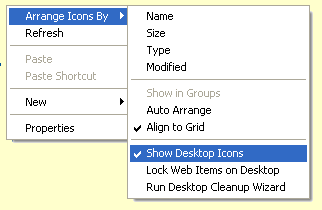
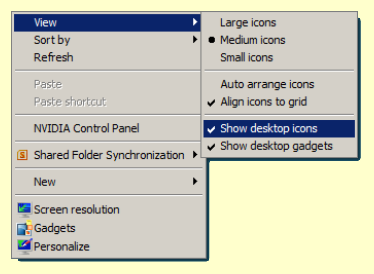
Windows offers the facility to hide all the icons on your desktop. The default option is to show all desktop icons, but this may be switched off either by accident or on purpose. To change this setting simply right-click on the desktop and a menu will appear.

On Windows XP you need to open up the 'Arrange icons by' sub-menu and then either tick or untick 'Show Desktop Icons'.
On Windows Vista and 7 the option is available in the 'View' menu.
Read More
Posted in Windows GUI | No comments

Wednesday, 12 January 2011

Dropbox: Internet File Storage

Posted on 05:10 by Unknown
There are a number of sites that offer you storage space to back up or share your files over the Internet. Many of them have a limit on the size of file that can be stored, but this is not the case with Dropbox. Dropbox offers 2gb of storage space for free. This capacity can be increased if you upgrade to one of the payment options.

Dropbox provide software that enables you to access your storage space as if it were a drive on your computer. This software is available for Windows, OSX, Linux and a variety of mobile devices. Alternatively you can use the Dropbox web site to upload and download files.

Files can be placed in a 'Public' folder so that other Dropbox users may access them, or they can be stored in your private area, in which you can create new folders. Dropbox also records any activity on your account. Just follow the simple registration procedure and you will have enough space to back up your essential files.
Read More
Posted in Freeware, Websites | No comments

Tuesday, 14 December 2010

Google Chrome for Linux

Posted on 08:30 by Unknown
Back in February I posted a list of Linux web browsers. I mentioned that a stable version of Chromium (the open-source basis for Google Chrome) would soon be available for Linux. I see that Chromium is now available in the Ubuntu repositories and a rpm package is also available for Fedora based distributions as far as I can tell.

Alternatively, you can now download installation packages for a stable version of Google Chrome for Linux. Packages are available in 32-bit and 64-bit versions of Debian, Ubuntu, Fedora and openSUSE. Chrome is also available in the Ubuntu canonical repository.


I installed the 64-bit version of Chrome on Xubuntu and it certainly appears to be very fast. I have yet to attempt all my usual web-based tasks on Chrome, but what I have tried has worked well. The growing collection of extensions for Chrome mean that I may be in a position to use it as my main browser rather than Firefox, although I may wait and see what the upcoming version 4 of Firefox has to offer.


Read More
Posted in Chrome, Linux | No comments

Friday, 3 December 2010

How to start Windows in safe mode

Posted on 05:48 by Unknown
Safe mode is very useful if you think you may have an infection on your computer, or if there is some other problem with Windows. Safe mode is a way to start Windows with the minimum of applications and facilities running. Consequently, viruses and the like are not invited to the 'safe mode' party.

To enter safe mode on Windows you need to press the F8 key when the system is booting up. You may have to wait a moment or two for the BIOS to finish its work. That is, you should wait for the initial 'splash screen' and system information to disappear. If you miss your opportunity, don't worry, just restart the machine and have another go.

After pressing F8 you will be presented with a menu of 'Advanced Boot Mode' options. For the purposes of this post we are only interested in the first two of these: 'Safe Mode' and 'Safe Mode with Networking'. You should have up-to-date anti-virus and other security software installed on your machine. If you do not, you can use 'Safe Mode with Networking' to start up Windows, download, install and run them. However, it is usually best to start the machine using the basic 'Safe Mode' option.

When starting in safe mode you will see a stream of file-names and services being started. If there is a problem with Windows you may see an error message at this stage. If so, make a note of the error message and type it into Google (other search engines are available) on another computer in order to learn more about the problem.

If all else fails and you still can't use Windows normally, you can use safe mode to copy your important files onto a memory stick or some other device before reinstalling Windows.
Read More
Posted in Windows Crash, Windows Explained | No comments

Friday, 29 October 2010

Top Three Web Based Image Editors

Posted on 09:25 by Unknown
If you are using a computer that doesn't have a decent image editor program, then you can make use of a variety of web-based image editors. Having surveyed those that are freely available, I present a list of the top three. Each of these alows you to perform a variety of simple tasks upon an image, such as cropping and resizing. Each also includes the usual drawing tools as well as supporting layers. Please try them out and leave a comment to share your experiences.

Editor by pixlr.com
Editor enables you to create new images or open image files from your computer or from the web in the following formats: bmp, gif, jpg, png, psd and pxd (Editor's own format). You can save images as bmp, jpg, png or pxd to your computer or to Facebook. It offers a good selection of tools and filters.


Sumo Paint 2.0
Sumo Paint also lets you create new images and open files from your computer or the web. You can open files in gif, jpg, png and its own sumo format, and you can save as jpg, png and sumo. It has the best selection of filters and tools of the three here.


Splashup
Splashup will open bmp, gif, jpg and png files not only from your computer and the web, but also from Facebook, Flickr, Photobucket and Picasa. You can save files back to each of these in jpg, png, and the somewhat obscure fxo format. It has the most limited selection of tools and filters of those listed here.
Read More
Posted in Graphics, Websites | No comments

Monday, 11 October 2010

How to see the Explorer menus in Windows Vista and 7

Posted on 09:26 by Unknown
As promised some time ago, here is the first post about Windows 7 (and Vista).

Users of XP and earlier versions of Windows who now use Vista or 7 will have noticed that the Explorer menus are no longer shown.


Thankfully there is an easy way to remedy this either temporarily or permenantly. To see the menu bar simply press the Alt key.


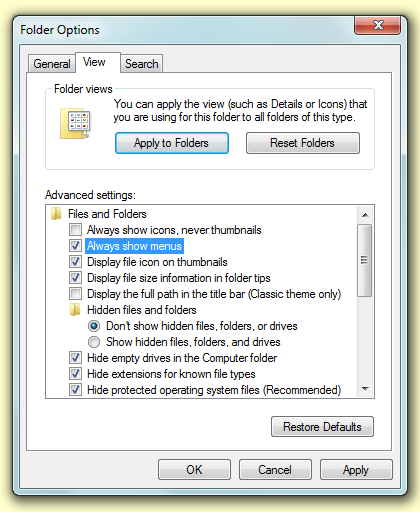
If you wish to always have the menus visible, select 'Folder options...' from the 'Tools' menu.


On the 'Folder Options' window, go to the 'View' tab and tick 'Always show menus' and then click the 'OK' button.
Read More
Posted in Windows GUI | No comments

Thursday, 9 September 2010

Linux commands for OpenOffice applications

Posted on 16:06 by Unknown
In order to create a launcher for a particular OpenOffice application, or if you wish to run one from a terminal in Linux, you will need to know which command opens each application. Unlike Microsoft Office, for example, there is one command to run OpenOffice to which you can add a parameter to run a particular application.

Command to run the Writer word processor: openoffice.org -writer

Command to run the Calc spreadsheet application: openoffice.org -calc

Command to run the Impress presentation application: openoffice.org -impress

Command to run the Base database application: openoffice.org -base

Command to run the Draw vector graphics editor: openoffice.org -draw
Read More
Posted in Linux, OpenOffice, Word Processing | No comments
Newer Posts Older Posts Home
Subscribe to: Comments (Atom)

Popular Posts

  • Recent freeware releases
    It has been some time since I last posted on this blog. In that time there have been a number of major new software releases. These include ...
  • Keyboard shortcut of the week: undo and redo
    Just about every windows application has an 'undo' feature and most have a 'redo' feature. These are a lifesaver on those fr...
  • What is that character called?
    If you look around your keyboard, you will notice a number of keys with characters on that you may not know the name of. In this post I will...
  • Updates
    Apologies for not posting anything recently. I have been very busy with the start of the new university year. Since things have calmed down ...
  • Tips for searching using Google
    The Google search engine syntax offers a number of options for getting better results. You can search for a specific phrase, search only on...
  • How to compress images in Word and Powerpoint
    Inserted images in Word and Powerpoint may appear small, but they are actually stored as their original size unless compressed. This can cau...
  • LibreOffice 3.4
    I have featured OpenOffice.org on this blog a few times in the past. It is a free office suite featuring a word processor, a spreadsheet pr...
  • How to print two pages per sheet
    Cutting down on the amount of paper used in printing not only saves money, but is also more environmentally friendly. Some applications offe...
  • Keyboard shortcut of the week: Windows 7 Taskbar
    After a long hiatus, keyboard shortc ut of the week returns to 'Bloody Computer!' This week, we will look at new features of the Wi...
  • Keyboard shortcut of the week: The Case of MS Word
    When using a word processor it is quite common to forget that that the CapsLock key has been left on, or you might decide that a piece of t...

Categories

  • Audio
  • Backups
  • Blog Carnival
  • Blogging
  • CD-roms
  • Chrome
  • Command Prompt
  • Competition
  • Drives
  • DVD-roms
  • Email
  • Error Messages
  • Excel
  • Faster Windows
  • File Conversion
  • File Management
  • File Recovery
  • File Types
  • Firefox
  • Fonts
  • Freeware
  • Games
  • Graphics
  • Guest article
  • Internet Explorer
  • Jargon
  • Keyboard shortcut
  • LibreOffice
  • Linux
  • Lost document
  • Low drive space
  • Mouse
  • Networking
  • OpenOffice
  • PowerPoint
  • Printing
  • Protection
  • Purchases
  • Registry
  • Review
  • Scanning
  • Searching
  • Security
  • Startup
  • Upgrades
  • Video
  • Web feeds
  • Websites
  • Windows Crash
  • Windows Explained
  • Windows GUI
  • Windows Hangs
  • Word Processing

Blog Archive

  • ▼  2012 (4)
    • ▼  September (1)
      • Keyboard shortcut of the week: Sub- and Superscript
    • ►  May (1)
    • ►  February (2)
  • ►  2011 (12)
    • ►  November (1)
    • ►  October (1)
    • ►  September (1)
    • ►  June (1)
    • ►  May (1)
    • ►  April (1)
    • ►  March (2)
    • ►  February (2)
    • ►  January (2)
  • ►  2010 (21)
    • ►  December (2)
    • ►  October (2)
    • ►  September (1)
    • ►  August (2)
    • ►  July (1)
    • ►  May (2)
    • ►  March (6)
    • ►  February (4)
    • ►  January (1)
  • ►  2009 (33)
    • ►  December (1)
    • ►  November (1)
    • ►  October (3)
    • ►  September (4)
    • ►  August (1)
    • ►  July (2)
    • ►  June (4)
    • ►  May (3)
    • ►  April (3)
    • ►  March (3)
    • ►  February (4)
    • ►  January (4)
  • ►  2008 (82)
    • ►  December (2)
    • ►  November (4)
    • ►  October (3)
    • ►  September (5)
    • ►  August (4)
    • ►  July (4)
    • ►  June (6)
    • ►  May (7)
    • ►  April (10)
    • ►  March (10)
    • ►  February (14)
    • ►  January (13)
  • ►  2007 (47)
    • ►  December (5)
    • ►  November (6)
    • ►  October (16)
    • ►  September (12)
    • ►  August (8)
Powered by Blogger.

About Me

Unknown
View my complete profile