Bloody Computer

  • Subscribe to our RSS feed.
  • Twitter
  • StumbleUpon
  • Reddit
  • Facebook
  • Digg

Wednesday, 7 May 2008

Wireless networking problems: quick repair

Posted on 07:58 by Unknown
Wireless networking, or wi-fi, has become a popular means of connecting to the Internet, but it can be problematical. There are all manner of things that can go wrong but there is a quick way to deal with many of the problems that do occur.

Locate the wireless icon (as pictured left) in the systray (the collection of icons by the time) and right click on it. This will open a menu. Click on 'Repair' - or 'Diagnose' if you are using Vista.

If you cannot see this icon go to 'My Network Places' and click on 'View Network Connections' in the 'Network Tasks' section.


This will take you to a list of your network devices. Right-click on the wireless connection icon and select 'Repair' from the menu.

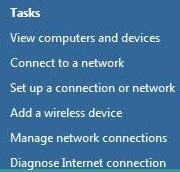
Vista users will be able to diagnose their connections by clicking on 'Networks' in the Start Menu and then clicking on 'Diagnose Internet connection'.
Read More
Posted in Networking | No comments

Wednesday, 30 April 2008

Keyboard shortcut of the week: Quickly Open Link in New Tab

Posted on 09:31 by Unknown
This tip should be of interest to all the Entrecard chain-droppers out there (you know who you are). It works in Internet Explorer (version 7 and later), Firefox, and Safari.

If you hold down the Ctrl key when you click on a link on a website the browser will open the linked page on a new tab, saving you having to right-click on the link and selecting 'Open Link in New Tab' (or 'Open in New Tab' on IE).
Read More
Posted in Firefox, Internet Explorer, Keyboard shortcut, Websites | No comments

Sunday, 27 April 2008

The Fourth Carnival of Computer Help and Advice

Posted on 07:54 by Unknown
Welcome to the fourth monthly Carnival of Computer Help and Advice. As ever many blog authors contributed their posts, and as ever limitation of space means that some did not make it into the carnival.

We start with a carnival regular: Andrew Edgington writes posts on the subject of digital imagery. In Edit Your Digital Photos Andrew says Emailing your photos? A few tips. For those of you who use Photoshop he writes the Learn Photoshop Now blog, which has included the following recent posts: Brightening Dark Shadows; Screen Blending Mode; and, Create an image with a transparent background.

Eerik Toom presents more general advice for Windows users with How to make an older program run in Windows XP posted at Cool Windows XP tips & tricks. More useful advice from Jon Knight who lists 5 Things You Can Do to Start Your PC Faster at his Wordout blog. On the subject of lists, Paul Wilcox of Security Manor explains The Three Things You Need To Protect Against Internet Security Risks.

Phil for Humanity eulogises on The Merits of Two Backups - very good advice, the more backups the better. For all the webmasters out there Fred Black praises Google WebMaster Tools at his Internet Business Blog. Finally, ChristianPF advises us on How to watch HD TV on your computer at ChristianPF.com.

If you would like to host the next carnival leave a comment on this post or use the contact form over at our Blog Carnival page where you can also submit your blog posts for inclusion.

More next month.
Read More
Posted in Blog Carnival | No comments

Thursday, 24 April 2008

Folder types: Music, Pictures, Videos, Documents, etc

Posted on 07:39 by Unknown
Windows Explorer has different looks for different folders depending on the type of files contained within them. The bar down the left hand side of the Explorer window will have different content - as shown below - and the files in the folder will be displayed in different ways.


Sometimes Windows selects the wrong folder type, or you may wish to change the style of the folder for some other reason. To do this you can either select 'Customize this folder...' from the 'View' menu, or right-click on some space in the folder and select 'Customize this folder...' from the menu that opens - as in the following image.


This will open up the 'Properties' dialogue box and take you to the 'Customize' page on which you can change the folder type as well as the pictures and icon that Windows displays for this folder. There are a variety of folder types that can be selected from the drop-down list. When you are done, click the 'OK' button.


Note: You cannot change these settings for the root directory on a hard-drive. That is, you cannot customize the top level of the C:/ drive or any other hard-drives that you may have installed.

Thanks to JohnGuru at The Ivory Tower for pointing this tip out to me.
Read More
Posted in Windows GUI | No comments

Tuesday, 22 April 2008

Using AutoText in Word

Posted on 07:10 by Unknown
If there are things that you find yourself typing regularly, there is a way of increasing your productivity. By using Word's AutoText feature you only have to start typing a few letters of your name or postal address before it offers an option to fill the rest of the text for you. Word comes with a number of entries already set up. If you start to type the word 'Cordially', you should notice a little box appear like the one pictured below. As it says, just press Enter and Word will insert the rest of the text.

If this does not appear, you probably have AutoComplete switched off. To switch this on, and to see a list of all the existing AutoText entries, pull down the 'Insert' menu and from the 'AutoText' sub-menu click on 'AutoText...', which will open the following dialog box.


Make sure that 'Show AutoComplete selections' is ticked. You can also create a new AutoText entry with this dialog by typing the text where indicated and clicking the 'Add' button; however, there is an easier way to do it.

Click on 'OK' to close the dialog box and in your current word document type your name. Select the text and either pull down the 'Insert' menu, then the 'AutoText' sub-menu, and click on 'Add...' or simply hold down the Alt key and press F3. You will then be asked to give the new AutoText entry a name.


From now on when you start to type your name you will be offered the option to insert it as with 'Cordially'. The advantage of entering new AutoText this way is that you can insert text that spans several lines like your postal address. All you need to do is type it in select it and press Alt and F3, as before. You can even add pictures to AutoText by selecting them along with some text or on their own and following the above instructions.
Read More
Posted in Keyboard shortcut, Word Processing | No comments

Friday, 18 April 2008

Recovering text from Word documents (Part 2)

Posted on 04:41 by Unknown
In the previous part of this article I looked at using the built in text recovery features in MS Word. But, what can be done if this doesn't work? One way to try to recover text from a corrupted file is to open it in Notepad.

To open Notepad click on the Start button, go to 'App Programs', then 'Accessories' and click on its icon. You can then drag and drop the corrupt file into Notepad.

You will then see something that looks like this.


As you can see Notepad is showing some garbage as well as the text of the Word document. The garbage is an attempt by Notepad to display binary (non-textual) information such as images and the like.

Switch on word wrapping, making Notepad remove the scroll bar from the bottom and spread long pieces of text over more than one line. To do this pull down the 'Format' menu and click on 'Word Wrap' if it is not already ticked. This will make the file easier to search through for the text you wish to recover.

You can now either just browse through the file copying and pasting the text you want into a new Word document, or you can use the 'Find...' facility in Notepad to locate the lost text (it is in the 'Edit' menu). Searching for frequently used words like 'the' or 'is' should enable you to quickly find the actual text among all the garbage.

For details on how to quickly select, copy and paste text, see this post.
Read More
Posted in File Recovery, Word Processing | No comments

Wednesday, 16 April 2008

Recovering text from Word documents (Part 1)

Posted on 08:08 by Unknown
If Microsoft Word runs into a problem with a file it usually offers a recover option when you open the program the next time. But sometimes this option is not given to you, and you have to try to recover text from a corrupted file manually.

To do this pull down the 'File' menu in Word and select 'Open...' to see the appropriate dialog box. From the 'Files of type' drop-down list select 'Recover Text from Any File'. Then browse to the file you wish to try to recover text, select it, and click the 'Open' button. With any luck Word will extract the text from that file. This process may work with files of types that Word does not support too.

In the second part of the article I will look at what to do if this method fails.
Read More
Posted in File Recovery, Word Processing | No comments
Newer Posts Older Posts Home
Subscribe to: Posts (Atom)

Popular Posts

  • How to print two pages per sheet
    Cutting down on the amount of paper used in printing not only saves money, but is also more environmentally friendly. Some applications offe...
  • What is that character called?
    If you look around your keyboard, you will notice a number of keys with characters on that you may not know the name of. In this post I will...
  • LibreOffice 3.4
    I have featured OpenOffice.org on this blog a few times in the past. It is a free office suite featuring a word processor, a spreadsheet pr...
  • Keyboard shortcut of the week: Windows 7 Taskbar
    After a long hiatus, keyboard shortc ut of the week returns to 'Bloody Computer!' This week, we will look at new features of the Wi...
  • How to compress images in Word and Powerpoint
    Inserted images in Word and Powerpoint may appear small, but they are actually stored as their original size unless compressed. This can cau...
  • Recent freeware releases
    It has been some time since I last posted on this blog. In that time there have been a number of major new software releases. These include ...
  • Where have all my desktop icons gone?
    Windows offers the facility to hide all the icons on your desktop. The default option is to show all desktop icons, but this may be switched...
  • How to install Ubuntu - Nixie Pixel
    This video is a short beginners guide to installing Ubuntu by Nixie Pixel, who you will see is far from the stereotypical computer geek. Thi...
  • Tips for searching using Google
    The Google search engine syntax offers a number of options for getting better results. You can search for a specific phrase, search only on...
  • Dropbox: Internet File Storage
    There are a number of sites that offer you storage space to back up or share your files over the Internet. Many of them have a limit on the ...

Categories

  • Audio
  • Backups
  • Blog Carnival
  • Blogging
  • CD-roms
  • Chrome
  • Command Prompt
  • Competition
  • Drives
  • DVD-roms
  • Email
  • Error Messages
  • Excel
  • Faster Windows
  • File Conversion
  • File Management
  • File Recovery
  • File Types
  • Firefox
  • Fonts
  • Freeware
  • Games
  • Graphics
  • Guest article
  • Internet Explorer
  • Jargon
  • Keyboard shortcut
  • LibreOffice
  • Linux
  • Lost document
  • Low drive space
  • Mouse
  • Networking
  • OpenOffice
  • PowerPoint
  • Printing
  • Protection
  • Purchases
  • Registry
  • Review
  • Scanning
  • Searching
  • Security
  • Startup
  • Upgrades
  • Video
  • Web feeds
  • Websites
  • Windows Crash
  • Windows Explained
  • Windows GUI
  • Windows Hangs
  • Word Processing

Blog Archive

  • ▼  2012 (4)
    • ▼  September (1)
      • Keyboard shortcut of the week: Sub- and Superscript
    • ►  May (1)
    • ►  February (2)
  • ►  2011 (12)
    • ►  November (1)
    • ►  October (1)
    • ►  September (1)
    • ►  June (1)
    • ►  May (1)
    • ►  April (1)
    • ►  March (2)
    • ►  February (2)
    • ►  January (2)
  • ►  2010 (21)
    • ►  December (2)
    • ►  October (2)
    • ►  September (1)
    • ►  August (2)
    • ►  July (1)
    • ►  May (2)
    • ►  March (6)
    • ►  February (4)
    • ►  January (1)
  • ►  2009 (33)
    • ►  December (1)
    • ►  November (1)
    • ►  October (3)
    • ►  September (4)
    • ►  August (1)
    • ►  July (2)
    • ►  June (4)
    • ►  May (3)
    • ►  April (3)
    • ►  March (3)
    • ►  February (4)
    • ►  January (4)
  • ►  2008 (82)
    • ►  December (2)
    • ►  November (4)
    • ►  October (3)
    • ►  September (5)
    • ►  August (4)
    • ►  July (4)
    • ►  June (6)
    • ►  May (7)
    • ►  April (10)
    • ►  March (10)
    • ►  February (14)
    • ►  January (13)
  • ►  2007 (47)
    • ►  December (5)
    • ►  November (6)
    • ►  October (16)
    • ►  September (12)
    • ►  August (8)
Powered by Blogger.

About Me

Unknown
View my complete profile